Keeping high-fidelity 3D at 60 frames per second
3D on the web is usually slow and clunky. Here is how I built the BASE 60 'Crucible'—a high-performance PC builder that balances photorealism with elite Core Web Vitals using Draco compression and adaptive degradation.
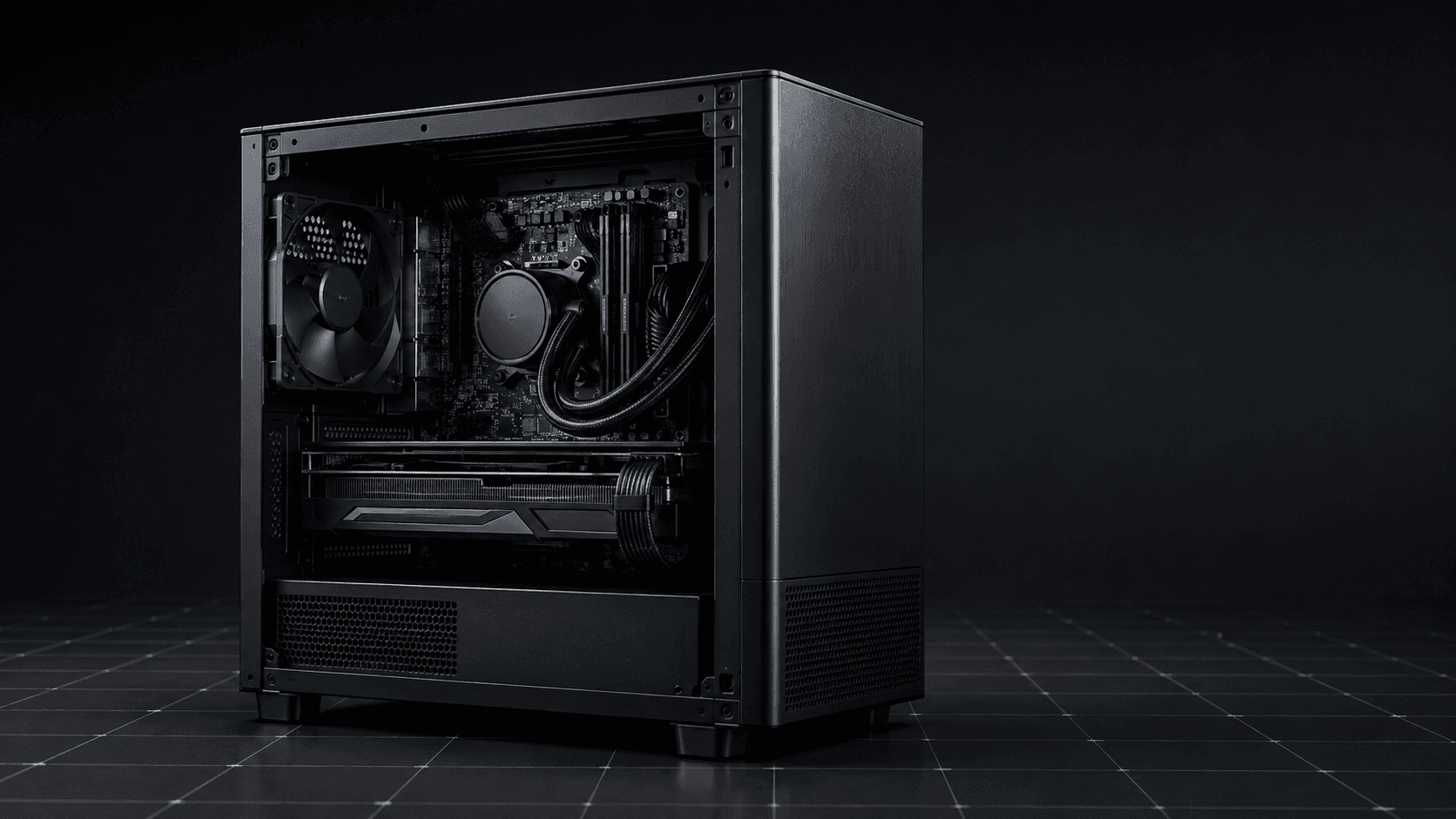
3D on the web is usually slow and clunky. Here is how I built the BASE 60 'Crucible'—a high-performance PC builder that balances photorealism with elite Core Web Vitals using Draco compression and adaptive degradation.
The biggest risk in building BASE 60 was the 3D Builder ("The Crucible").
Web-based 3D configurators have a reputation for being resource hogs—spinning up fans, crashing mobile tabs, and taking 10+ seconds to load. For a brand positioning itself as an elite hardware foundry, a laggy interface would be a fatal irony.
I needed to render complex geometry (GPUs with fans, motherboards with capacitors) without killing the user's browser. Here is the Asset Pipeline I engineered to keep the foundry running at 60 FPS.
1. The Geometry Protocol (Draco Compression)
A raw .gltf file for an RTX 4090 can easily exceed 50MB. That is unacceptable for the web.
I implemented a strict Compression Pipeline using Draco—Google's open-source library for compressing 3D geometry. It works by quantizing vertex positions (reducing the precision of coordinates) which is invisible to the human eye but massive for file size.
- Raw OBJ: ~45 MB
- GLTF: ~12 MB
- GLB + Draco: ~1.8 MB
In React Three Fiber, I integrated the Draco Decoder to unpack these assets on the fly via a Web Worker, keeping the main thread unblocked.
tsxSnippet// components/builder/part-model.tsxconst DRACO_URL = "https://www.gstatic.com/draco/versioned/decoders/1.5.5/";export function PartModel({ path }) { // The loader automatically spins up a worker to decompress the asset const { scene } = useGLTF(`/assets/models/${path}.glb`, DRACO_URL); return <primitive object={scene} />;}
2. The "Holographic" Loading State (Perceived Performance)
Even with compression, assets take time to fetch over a 4G network. A spinning loader is boring; a blank screen is broken.
I designed a "Holographic Blueprint" fallback. Using React Suspense, while the high-res model is fetching, the user sees a wireframe box with the exact dimensions of the component.
tsxSnippet// The Fallback Mesh<mesh> <boxGeometry args={[width, height, depth]} /> <meshStandardMaterial wireframe color="#FFB400" opacity={0.3} /> <Html> <span className="font-mono text-xs">DOWNLOADING_GEOMETRY...</span> </Html></mesh>
This transforms "Lag" into "Immersion." It looks like the system is scanning the part into existence, maintaining the "Foundry" narrative while covering network latency.
3. Adaptive Degradation (Mobile Optimization)
A gaming PC can render soft shadows and high-res textures easily. An iPhone SE cannot.
I utilized @react-three/drei's PerformanceMonitor to create a dynamic quality scaler. The app monitors the frame rate in real-time. If it dips below 40 FPS, the system automatically:
- Reduces the internal render resolution (DPR).
- Disables soft contact shadows.
- Simplifies lighting calculations.
tsxSnippet// components/builder/scene-3d.tsxexport function Scene3D() { const [dpr, setDpr] = useState(1.5); return ( <Canvas dpr={dpr}> {/* If FPS drops, cut resolution to 1.0 (Native) or 0.5 (Low) */} <PerformanceMonitor onIncline={() => setDpr(2)} onDecline={() => setDpr(1)} /> {/* ... Scene Content ... */} </Canvas> );}
4. The "Schematic" Fail-Safe
Sometimes, 3D just isn't the right tool. Navigating a 3D scene on a small vertical phone screen is ergonomically difficult.
I built a "Dual-View Architecture." The application state (Zustand) is decoupled from the visuals. This allowed me to build two completely different frontends for the same data:
- Holographic Mode (Desktop/High-End): The immersive 3D experience.
- Schematic Mode (Mobile/Low-Bandwidth): A high-density 2D list view.
Users can toggle between these modes instantly. This ensures that a user on a slow connection isn't blocked from buying a PC just because the 3D model failed to load.
5. The Image Pipeline (Next/Image)
Outside of the 3D canvas, the 2D assets (product thumbnails) needed similar care. I built a SafeImage wrapper around next/image.
- Error Handling: If a product image fails (404), it swaps to a "Technical Placeholder" graphic instead of a broken icon.
- Layout Shift: Forced aspect ratios prevent the UI from jumping around as images load.
- Grayscale-to-Color: To save focus, images load in grayscale and only "ignite" into color when they enter the viewport (using
framer-motion), directing the user's eye to the active content.
Conclusion
Performance is the foundation of luxury. A high-end brand cannot feel slow. By combining aggressive compression, adaptive rendering, and smart fallback UIs, BASE 60 delivers a console-quality experience in a standard web browser.